I’ve picked the wrong web host more than once, and every time it’s cost me. Sometimes a slow site nobody wants to wait for, sometimes a renewal bill that triples overnight after I started out on cheap WordPress hosting. These are the WordPress hosting mistakes to avoid so you can skip the expensive version of the lesson.
Once, sudden website downtime left me stuck in support limbo for days with no fix. After 15 years of building websites and hundreds of WordPress setups, I’ve made just about every hosting mistake you can think of. I broke all of this down in a video too, where I set up a fresh site from scratch at the end.
Key Takeaways for Avoiding WordPress Hosting Mistakes
- The cheapest plan usually isn’t cheap. Renewal hikes and hidden add-ons for WordPress backup systems and SSL pile on after year one.
- Site speed is a whole stack, not a switch. Managed hosts handle it for you automatically, which is vital for search and AI recommendations.
- Real human support matters most when things break. Nothing beats a WordPress expert on the line when a plugin update crashes your site late at night.
- Judge a host on what you feel daily. Proven uptime guarantees, honest renewal pricing, and built-in caching save you from endless technical headaches.
Skip the Hosting Headaches and Start Fast With Hosting.com
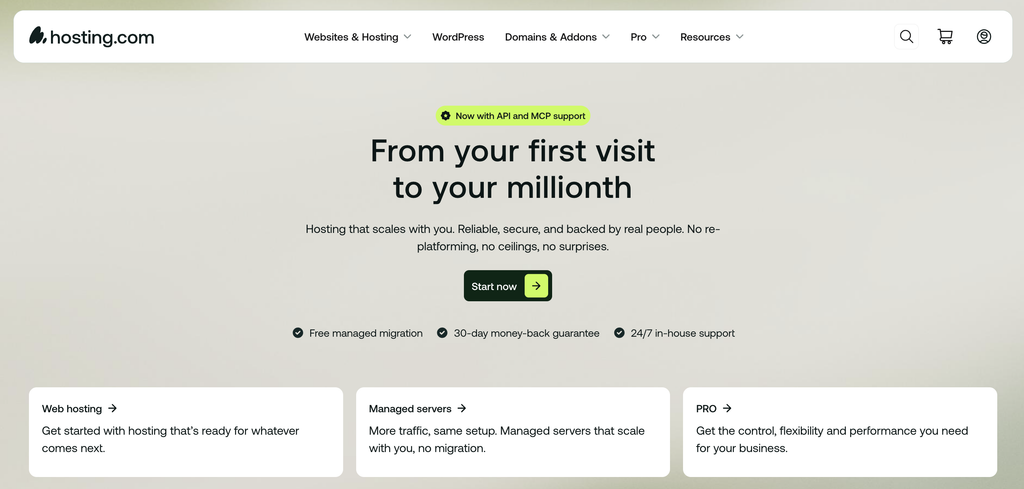
Hosting.com is the managed host I trust with my own sites. It quietly handles the speed, security, and backups that used to eat my time, with a real support team on the line whenever something breaks. Use my code RyRob for a discount on your first year👇
The WordPress Hosting Mistakes That Cost Me the Most
Making hosting mistakes is just part of the learning curve when you’re building online businesses. I’ve stumbled through bad pricing traps, ignored performance metrics, and leaned on support teams that didn’t really exist. These are the ones that got me.
Mistake 1: Shopping on Price Alone and Missing the Real Costs
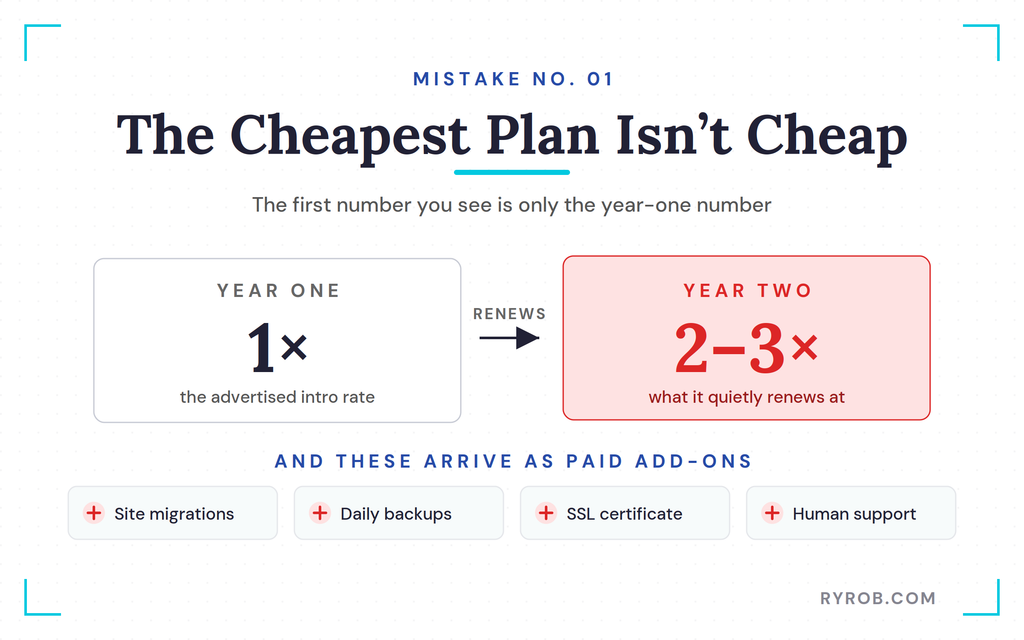
When you look at a hosting provider’s pricing page, the first number you see is an intro rate for year one. In year two, that price often renews at two to three times what you signed up for. It’s a standard industry practice, but not every host makes it obvious upfront.
My main issue isn’t the renewal increase, it’s the lack of transparency. Worse yet, ultra-bargain hosts treat basic necessities as paid add-ons. Features like site migrations, daily backups, an SSL certificate, and real human support often cost extra on cheap plans.
When you factor in those hidden fees, the cheapest option on screen stops being cheap. You’re better off looking for honest plan breakdowns and free migrations like the ones in our guide to the best managed WordPress hosting plans.
Mistake 2: Ignoring Site Speed and Performance
When I started out, I figured WordPress is WordPress and it would all load fine on its own… turns out that’s not how it works. Website performance needs real attention, and slow loading times can quietly wreck your entire business model.
Visitors leave before pages finish loading, and search engines pay close attention to speed. As Google’s Core Web Vitals documentation explains, speed is a core signal for how your pages perform.
AI assistants and search engines use speed to decide which businesses to recommend. If your site drags, you get skipped entirely. Speed affects search engine optimization and can help protect your Google rankings, but it’s not one simple setting you can toggle on.
It’s a full stack of technologies working together, including page caching, object caching for the database, and a content delivery network. Rather than leaning on a single third-party caching plugin during traffic spikes, a solid hosting infrastructure manages server resources for you automatically.
Tools like object caching in WordPress help reduce database strain, while a massive network like Cloudflare’s global network serves your pages from close to your visitors. On a managed host, that entire stack is set up for you out of the box.
Mistake 3: Treating Support and Security as Afterthoughts
Running a website means managing a long list of chores. Security patches, plugin updates, backups, firewalls, and uptime monitoring all land on you. On a basic host, even security is your job, which usually means stacking plugins to fend off brute force attacks.
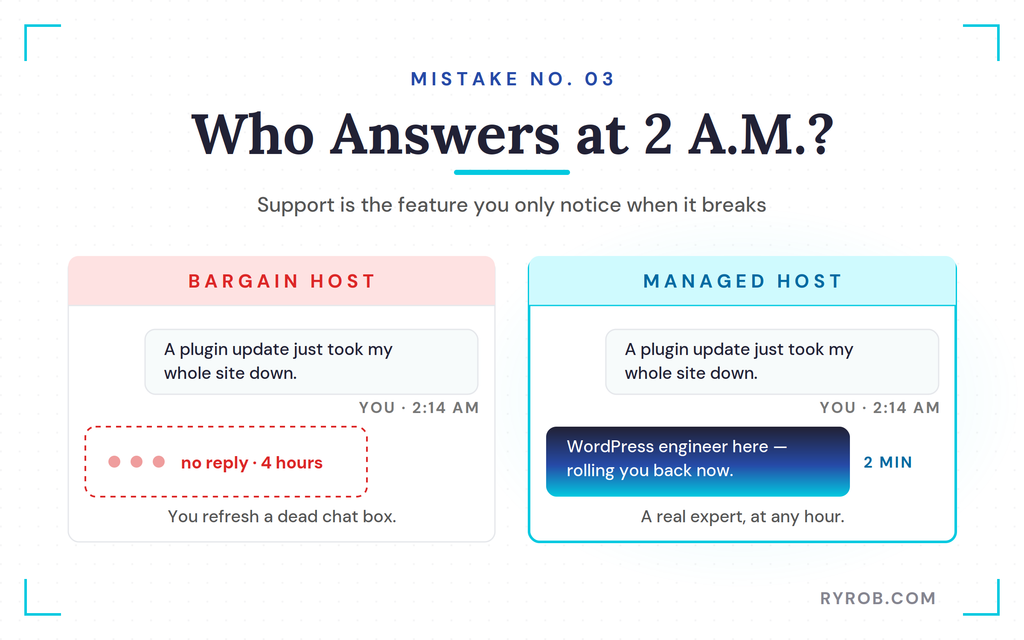
Years ago, I pushed a plugin update that took my entire website down late at night. Because I’d chosen a bargain host with no real support team, I sat there refreshing a dead chat box for hours hoping someone would show up.
Having a real human who knows WordPress on the other end, available day or night, changes everything. Managed hosting takes routine maintenance off your plate entirely. Some plans also bundle in security features like a web application firewall, automatic WordPress core updates, and automated database backups, so you aren’t left stranded when something breaks.
That safety net is a big part of why I ended up partnering with Hosting.com for my own sites this year, since their managed plans put a real WordPress support team behind you around the clock.
If you want to set yours up the same way as you read along, my code RyRob gets you a discount on Hosting.com’s managed WordPress plans.
Avoiding WordPress Hosting Mistakes: A Step-by-Step Setup Guide
Setting up your site the right way doesn’t have to be a technical nightmare. Once you know which features to look for, you can spin up a secure environment in minutes.
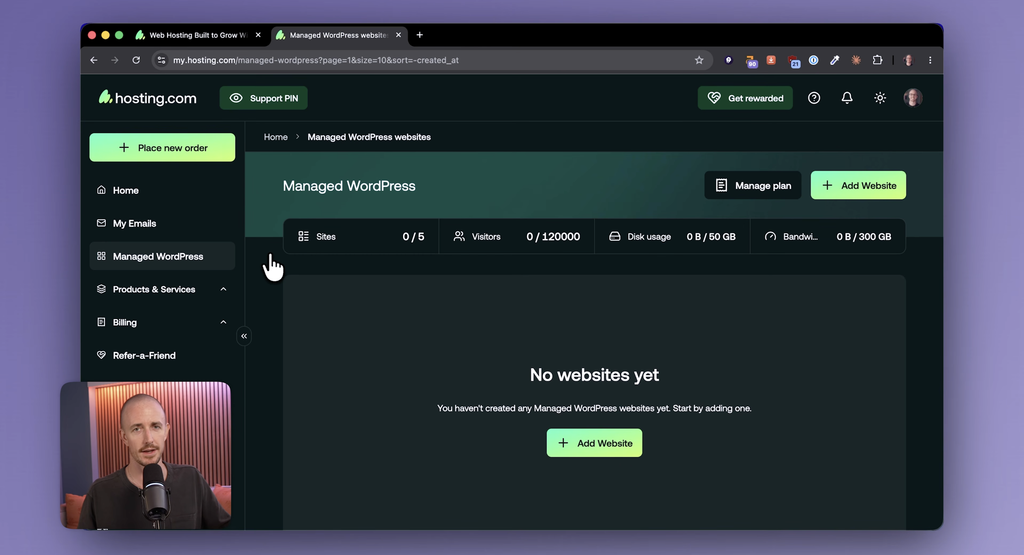
Choosing a Managed WordPress Host
Basic shared plans put all the technical upkeep on you, and that’s just one of several hosting types. A self-managed VPS hosting plan also leaves server maintenance in your hands, while managed WordPress hosting takes a different approach.
It handles server-level optimizations, security monitoring, and updates behind the scenes, tailored to your site’s resource requirements.
When you compare options, look for a provider that includes built-in caching, automatic backups, free site migrations, and 24/7 expert support. If you want to explore different setups, our roundup of the best web hosting plans helps clarify what various tiers actually offer.
The Setup Process from Dashboard to Live Site
Spinning up a site on a managed platform takes very little time once you pick a plan. You select your hosting tier, from a starter plan all the way up to a dedicated server for the largest sites, then decide whether to register a domain or use an existing one, and complete your checkout.
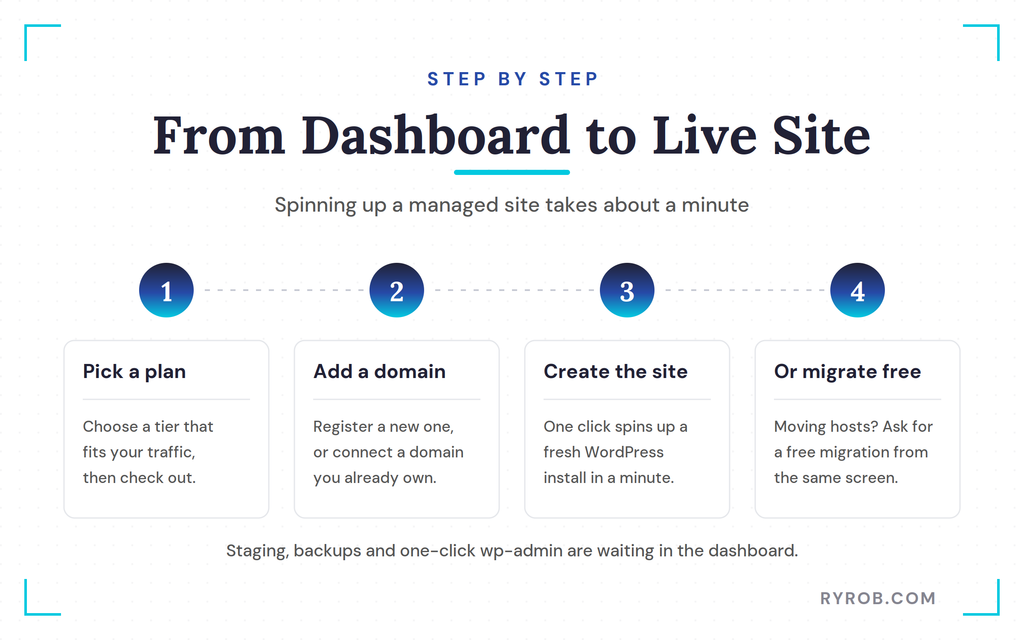
Once you log into your new dashboard, you can add a website with a single click. If you’re moving from a bad provider, you can request a free migration right from that interface.
Creating a brand new site takes about a minute. Your dashboard gives you instant access to file managers, a staging environment, and database backups, plus a one-click login for your WordPress admin area.
After setup, review your permalink settings so your URLs are ready for search engines.
The Hosting Scorecard: What to Look for in a Hosting Provider
Don’t rank your web host on metrics that are easy to fake, like massive storage numbers or introductory monthly prices. Rank them on the things you actually feel every day.
- Real speed that’s configured out of the box, not left for you to wire up.
- Reliable uptime guarantees you can actually hold them to.
- Support you can reach the moment something breaks.
- Proactive security that defends against brute force attacks.
- Automatic backups and free migrations so you’re never trapped.
It’s also worth picking a host that leaves you room to grow, like the option to step up to a managed VPS once your site outgrows a standard plan.
If you want to dive deeper into building your site on the right foundation, our beginner’s guide to WordPress is a great next step.
FAQs About Avoiding WordPress Hosting Mistakes
A few quick answers to the questions I hear most about the WordPress hosting mistakes to avoid.
What Is TTFB and Why Does It Matter?
TTFB stands for Time to First Byte, which measures how long your browser waits before receiving the first byte of data from the server. It’s a critical indicator of server responsiveness and how quickly server resources process requests.
Can a CDN Help if My Server Is Slow?
A content delivery network caches static assets across global servers, but it can’t fix a sluggish underlying database or slow server response times.
How Often Should I Back Up My Site?
Use automated WordPress backup systems to run daily backups. That way you can restore your site instantly if a plugin update or security issue causes a crash.
What Is the Difference Between Shared and Managed Hosting?
Shared hosting puts many sites on one server with minimal resources and no technical help. Managed hosting optimizes the server for WordPress, handles maintenance, and offers stronger uptime guarantees and security features to prevent website downtime.
Final Thoughts on WordPress Hosting Mistakes to Avoid
Choosing the right web host won’t write your content or market your business for you. Those tasks are still entirely in your hands.
What a good host does is remove the technical weight that slows you down. When your site is fast, secure, and backed by expert technical support, you stop thinking about your infrastructure entirely.
Evaluate your current hosting provider against a solid scorecard today. If you’re on cheap WordPress hosting that’s holding you back, change now. It’ll save you countless headaches down the road.
Skip the Hosting Headaches and Start Fast With Hosting.com
Hosting.com is the managed host I trust with my own sites. It quietly handles the speed, security, and backups that used to eat my time, with a real support team on the line whenever something breaks. Use my code RyRob for a discount on your first year👇
Disclaimer: This story is auto-aggregated by a computer program and has not been created or edited by budgetbuddy.
Publisher: Source link
Publisher: Source link